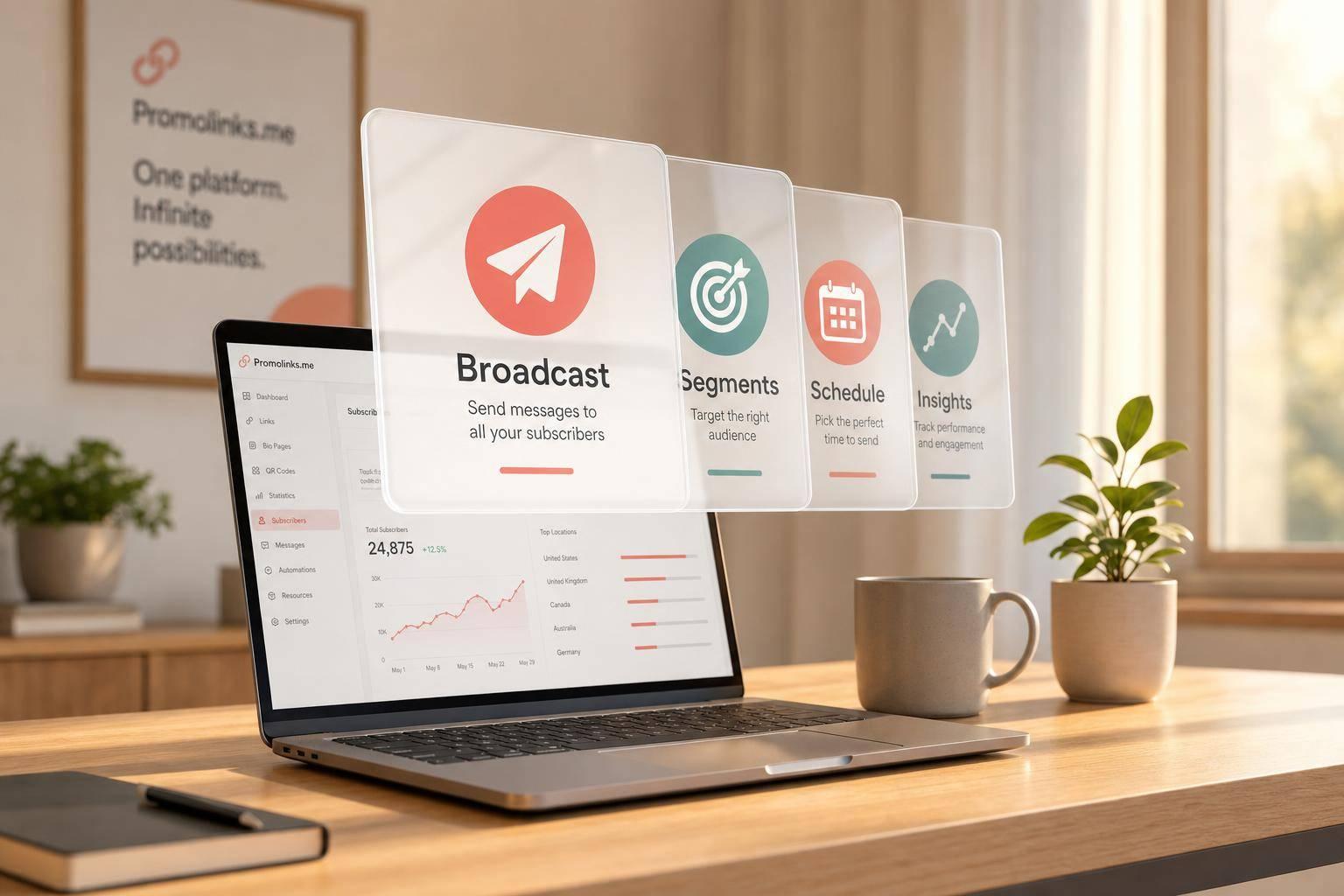
Broadcasting messages to all your subscribers from the Promolinks.me platform
If I need to email all fans at once in Promolinks.me, I use Broadcasts. It’s a one-time email tool for big moments like a release day, pre-save push, ticket on-sale, or merch drop. I write one message, choose all subscribers or a filtered group, send it now or schedule it, and then check opens, clicks, unsubscribes, and campaign results.
Here’s the short version:
- I can send broadcasts from Subscribers > Broadcasts
- I can send to all subscribers or filter by source, link, event, country, date, or tags
- My subscriber list comes from Smart Links, Pre-save Campaigns, Artist Pages, Label Pages, Event Pages, and Link Gates
- Spotify pre-saves can collect email and display name, but Apple Music pre-saves do not collect email
- For release-day emails, I should send after 6:00 a.m. UTC daily pre-save processing
- Promolinks.me says pre-save campaigns can drive 3.2x more day-one saves than manual sharing
- Before sending, I should check opt-in status, working links, and unsubscribe access
- This feature is for Pro plans and above
What matters most is simple: I should use a broadcast only when one message needs one clear action. This is a core part of music promotion across platforms. For example, stream now, pre-save now, buy tickets now, or shop now. If the update only fits part of my audience, I should send to a filtered segment instead of my full list.
I also get more control than a plain email blast. I can sort subscribers by artist, source, release, event, or city, test the message before sending, and match each email to the right page inside Promolinks.me.
A quick view:
| Use case | Main goal | Best link to use |
|---|---|---|
| Release alert | Drive streams | Smart Link |
| Pre-save reminder | Get more saves | Pre-save page |
| Tour update | Drive ticket clicks or RSVPs | Event Page |
| Merch drop | Drive store sales | Merch Smart Link |
So if I want fewer tool switches and one place to manage list growth, sends, scheduling, and results, this is the workflow I’d use.
When to send a broadcast to your full subscriber list
Send a full-list broadcast ONLY when the moment matters and the next step is obvious.
That usually means a high-priority event with one clear action: a release, a tour on-sale, or a limited merch drop. In those cases, timing matters just as much as the copy.
Best timing for release, tour, and merch announcements
For new music, send a pre-save reminder early, then a follow-up reminder one week before release. On release day, send the alert after Promolinks.me's daily pre-save processing at 6:00 a.m. UTC.
That same logic applies to tour and merch sends. Hit people at the moment urgency is highest. For tour, that's when tickets go live. For merch, it's when the item is actually limited and urgency is the main reason to act.
What these broadcasts are meant to drive
Each type of broadcast should push one main outcome.
- Pre-save reminders drive saves
- Release-day alerts drive first-day streams
- Tour announcements drive ticket clicks
- Merch drops drive store conversions
Artists using pre-save campaigns see an average of 3.2x more day-one saves compared with manual sharing.
What you need before you send
Before you send anything, check your pre-release basics:
- The list is opt-in
- Every destination link works
- An unsubscribe option is included
With timing locked in, organize your subscribers and broadcast tools in Promolinks.me.
sbb-itb-e819543
How to set up your list and broadcast tools in Promolinks.me
Where your subscribers come from
Once subscribers come in, sort them before you send anything out. In Promolinks.me, subscribers usually come from opt-ins on Smart Links, Artist Pages, Label Pages, Event Pages, Pre-save Campaigns, and Link Gates. Each contact is added to Subscribers > Email lists. Spotify pre-saves collect email and display name, while Apple Music pre-saves do not collect email.
How to organize subscribers for cleaner sends
Promolinks.me tags subscribers by source and lets you filter by source, which makes list building much easier. That means you can keep release updates, tour announcements, and merch promos in separate groups without sorting people by hand.
A simple setup works best:
- A master list for every confirmed subscriber across all assets
- Artist-based lists to keep fans separated by act
- Campaign segments for sends tied to one release, event, or audience slice
Use segments when a message should go only to fans from a certain release, city, or campaign. A clean naming format helps too, like [Artist Name] – Master List or [Artist Name] – Tour Segment.
Which Promolinks.me features support broadcasts
The broadcast flow brings together a few parts of the platform, and each one has a clear job.
| Feature | Role in the Broadcast Workflow |
|---|---|
| Smart Links | Capture emails during pre-release and launch with embedded email capture blocks |
| Pre-save Campaigns | Collect emails and platform preferences for release-day follow-ups |
| Artist Pages & Label Pages | Persistent hubs for long-term subscriber growth and general news broadcasts |
| Event Pages | Gather local fan emails for date, venue, and ticket updates; enable city-level segments |
| Manager Accounts | Centralize list and broadcast management across multiple artists while keeping audiences separate |
| Subscribers Page (Broadcasts tab) | Compose and send broadcasts with subject, body, cover image, CTA button, and light and dark themes |
Inside Subscribers > Broadcasts, you can send to all subscribers or narrow the audience with filters like source, link, event, country, date range, or tags.
With your lists in place, you can move into Subscribers > Broadcasts and draft the send.
How to create, send, and track a broadcast message
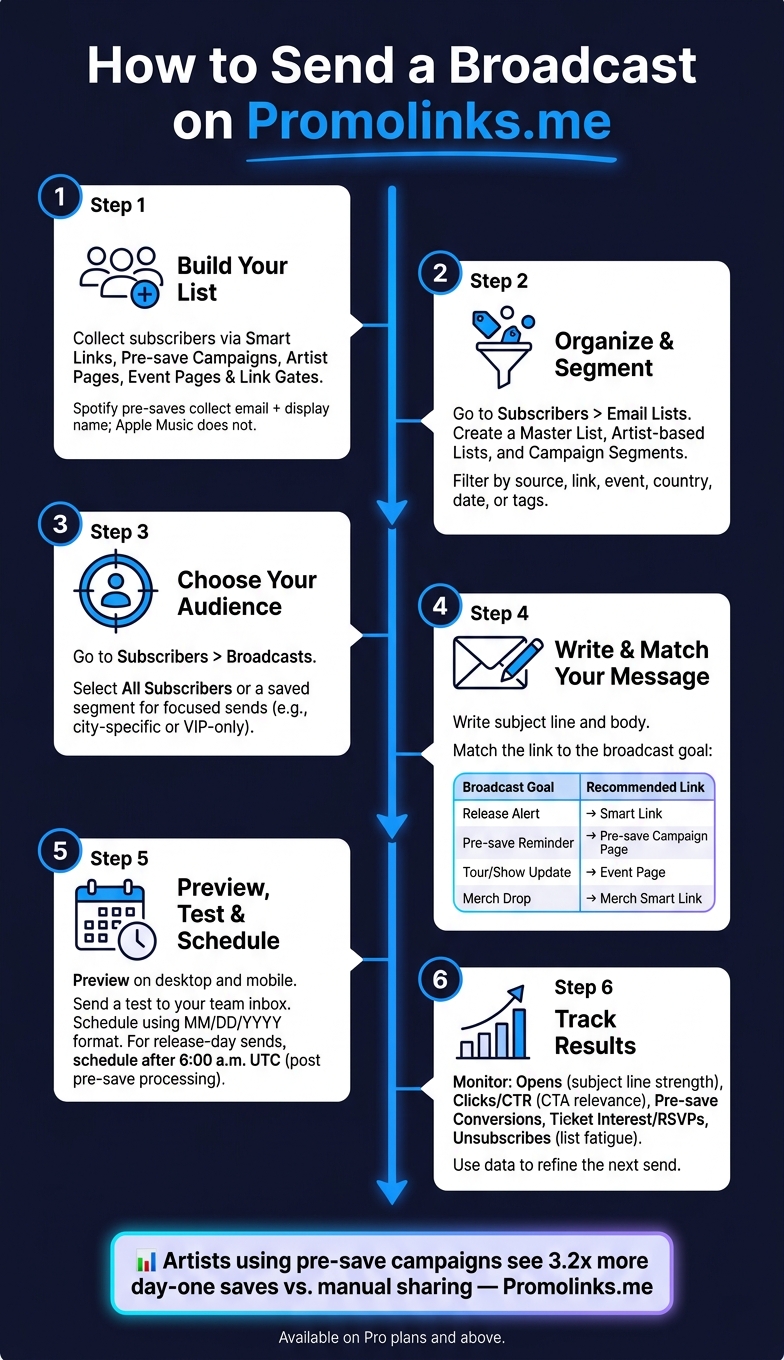
How to Send a Broadcast on Promolinks.me: Step-by-Step Workflow
Write your message and choose the right links
Once your lists are set, go to Subscribers > Broadcasts and draft the send. Pick All Subscribers or a saved segment, then write your subject line and message.
The link you use should line up with the goal of the broadcast. If the goal and the destination don’t match, people click and then hit a dead stop.
| Broadcast Type | Primary Goal | Promolinks.me Asset to Link |
|---|---|---|
| Release Alert | Drive immediate streams | Smart Link (with Audio Preview) |
| Pre-save Reminder | Build algorithmic momentum | Pre-save Campaign Page |
| Tour/Show Update | Ticket sales or RSVPs | Event Page |
| Merch Drop | Drive purchase intent | Merch Smart Link |
Preview, test, and schedule your send
Before you send anything, preview the email on desktop and mobile. Then send a test to your team inbox so you can check formatting and make sure the links behave the way they should.
When it’s time to schedule the broadcast, you can send it right away or choose a set date and time. Use MM/DD/YYYY and local time so there’s no confusion about when the message will go out.
Measure opens, clicks, and conversions
After the broadcast goes out, check the analytics to see how fans responded.
| Metric | What It Means | Next Action |
|---|---|---|
| Opens | Subject line strength | Test a more urgent or personal subject line next send. |
| Clicks / CTR | CTA relevance | Shorten the copy or move the link higher if clicks are low. |
| Pre-save Conversion | Fan commitment before release | Follow up with a "Release is Live" broadcast to this group. |
| Ticket Interest / RSVP Count | Geographic demand for shows | Use city-level data to plan future tour stops in high-click cities. |
| Unsubscribes | List fatigue | Refine your segments if this number spikes after a send. |
Use what you learn here to tighten up the next broadcast. Look at the results, then pick the subject line, CTA, and audience that gave you the best response last time.
Conclusion: Keep fans informed from one platform
Use full-list broadcasts for updates every subscriber should get: new releases, tour on-sales, merch drops, or big campaign news. If the message is meant for everyone, send a broadcast. For more focused sends, like a city-specific show reminder or a VIP-only offer, targeted segments make more sense.
Promolinks.me keeps that whole process in one place. Subscriber capture, list organization, sending, and scheduling all happen in the same workflow.
After each send, analytics show what to improve next. They help you see which subject lines and links get the best response, so each follow-up can be tighter and more effective than the last.
That setup saves time across every release cycle. The biggest plus is simple: fewer tool switches. Subscriber data, links, scheduling, and performance reporting all live in one place, so the path from idea to fan-facing message stays short.
FAQs
How do I know when to email everyone vs. a segment?
Use a broadcast for big updates that matter to your full list, like a new release alert or a general announcement.
Use a segment when the message should feel more personal. The platform’s fan CRM tools let you check engagement history and scoring, so you can reach dedicated superfans or specific listener groups with messages that fit them better.
What happens if my pre-save campaign includes Apple Music fans?
If a fan picks Apple Music during your pre-save campaign, they’ll go straight to your release there as soon as it’s live.
PromoLinks.me also switches your pre-save page into a smart link on release day. That means fans who click it get sent to their preferred streaming service, including Apple Music, so they can start listening right away.
Can I schedule a release-day broadcast for my local time?
No. Automatic release-day transitions run at 6:00 AM UTC on your release date.
That means you can’t pick a custom local time. The platform will switch your pre-save page to a live smart link for you at that standard time.
Related Blog Posts
Ready to create your smart links?
Join thousands of artists using PromoLinks to promote their music smarter.
Get Started Free