Tracking Pixels for Music Pages: Complete Guide
Tracking Pixels for Music Pages: Complete Guide
If you run ads for music, a pixel tells you more than a plain link click. I’d set it up on pages I control, track the fan actions that matter, and use that data to retarget people, check results, and send the right follow-up offer.
Here’s the short version:
- I can only track fans on pages I own, like smart links, artist pages, pre-save pages, and event pages
- I should match each page to the action I want, such as:
- artist pages for visits and email signups
- release links for Spotify or Apple Music clicks
- pre-save pages for pre-save completions
- event pages for ticket clicks or purchases
- I should use standard events like PageView, ViewContent, Lead, and Purchase, then add music-specific events if needed
- I need to follow a music marketing checklist to test the setup before spending money, check for duplicate events, and verify my domain for Meta
- Pixel data can help lower costs: campaigns using pixel data see about 28% lower cost per action than link-click-only campaigns
- For music ads, the article points to rough targets like:
- $0.08 to $0.25 per Spotify click
- CTR above 1.5%
- landing-page conversion above 60%
- I should build audiences by intent:
- page visitors
- streaming-link clickers
- pre-save or email signups
- buyers
- I should also exclude people who already converted, and watch ad frequency once it goes above 3 to 4 times per week
One thing matters most: the pixel cannot track what happens on Spotify or Apple Music after the click. It only tracks what happens on the page before that step.
So if I want clean reporting and better retargeting, I need a music page that sits between the ad and the DSP, plus clean event naming, testing, and follow-up use of the data.
How to Set Up Pixels on Music Pages
Create the pixel and copy the ID from your ad platform
With the right page picked, install the pixel and test it before launch. Start inside your ad account, copy the Pixel ID, and paste it into your page builder.
In Meta Ads Manager, open Events Manager, click "Connect Data Sources," pick "Web," and then choose "Meta Pixel." After you name the pixel and enter your website URL, Meta gives you a Pixel ID. That number is what you need to copy.
For TikTok, go to Assets > Events in TikTok Ads Manager and create a new Web Event with the TikTok Pixel.
Add the pixel inside your music page builder
Most music page builders have a Pixels or Tracking field in the settings area. Paste your Pixel ID there. PromoLinks.me supports this out of the box, with pixel retargeting built into smart links, artist pages, pre-save campaigns, and event pages.
There’s one setup choice to make early: account-level vs. page-level placement.
- Account-level placement adds the pixel to every new link you publish by default.
- Page-level placement gives you tighter control, so you can attach a certain pixel to one campaign only, but you’ll need to set it up by hand each time.
After you add the ID, check that it works before spending money on ads. Install the Meta Pixel Helper Chrome extension, open your live page, and look for a green checkmark. Test in Chrome with Meta Pixel Helper; privacy settings can hide events.
Setup differences by page type
The pixel ID stays the same across your pages. What changes is the event you track on each page type.
| Page Type | Recommended Event | Setup Focus |
|---|---|---|
| Artist Page | PageView / SocialClick |
Fire on load; capture all visits for retargeting |
| Release Link | ViewContent / Music_PlayClick |
Track which DSP button the fan clicks |
| Pre-save Page | Lead / PreSaveSuccess |
Trigger on streaming account authorization |
| Event Page | Purchase / CompleteRegistration |
Map to ticket click or RSVP confirmation |
For an artist page, the goal is simple: log visits so you can retarget those fans later.
For a release link, track which streaming service the fan clicks, not just the fact that they landed on the page. That extra detail matters for your music analytics.
For a pre-save page, the main action is when the fan authorizes their streaming account. That usually maps to a Lead or PreSaveSuccess event.
Event pages usually track higher-intent actions, like a ticket click or Add to Cart. Mapping those to Purchase or CompleteRegistration sends a stronger signal to the ad platform.
Once the pixel is live, map each fan action to the event you want to optimize. After installation, assign events to each action fans take on the page.
sbb-itb-e819543
Map Fan Actions to Tracked Events
The fan actions worth tracking
Once the pixel is live, connect each fan action to the event it stands for. The goal is simple: track the action that shows intent, not just the page someone happened to load.
A page view shows interest. A stream click shows a stronger signal. So when you're setting up tracking, tie the event to the action that lines up with the campaign goal.
| Fan Action | Suggested Tracked Event | Campaign Goal |
|---|---|---|
| Lands on smart link or artist page | PageView / ViewContent |
Awareness / Retargeting |
| Clicks "Listen on Spotify/Apple Music" | Music_PlayClick / ViewContent |
Conversion (Streams) |
| Submits pre-save or email signup | Lead / Subscribe |
Fan Acquisition |
| Clicks "Buy Tickets" | InitiateCheckout |
Ticket Sales |
| Completes merch or ticket purchase | Purchase |
Revenue / ROI |
| Plays audio preview | PreviewPlay |
Engagement |
Music_PlayClick fires when a fan taps a destination button like "Listen on Spotify." Lead fires only after a form is successfully submitted.
Standard events versus custom events
Standard events like PageView, ViewContent, Lead, and Purchase are the events ad platform algorithms are built to use for optimization. Custom events are useful for music-specific actions on artist pages, release links, and pre-save pages. But there's a catch: ad platforms can't optimize around those custom events directly unless you map them to a standard category with Custom Conversions.
That extra step helps the platform optimize around fan intent instead of just surface-level activity.
After you lock in the event list, rank the events that should drive optimization. Meta limits each domain to 8 prioritized events under AEM, so the order matters. The top-ranked event gets priority under iOS restrictions.
A common music setup looks like this:
PurchaseLeadAddToPlaylistMusic_PlayClickViewContent
Clean, steady event setup helps with more than tracking. It also improves audiences, reporting, and follow-up promotion.
Keep event names and rules consistent
Messy event naming is one of the main reasons music campaign reports turn into a headache over time. If one release tracks a Spotify click as Spotify_Click and the next uses Stream_Click, the data won't roll up cleanly across campaigns.
Use one naming system across everything. A format like ArtistName_ReleaseTitle_Action - for example, JaneDoe_NewSingle_SpotifyClick - makes each event easy to spot at a glance, whether you're checking one release or looking back across a full year of catalog pushes.
Pick the naming pattern before launch, then stick with it. That kind of consistency keeps reporting and audience building clean in the next stage.
Facebook Pixel: Everything Music Artists NEED To Know
How to Use Pixel Data for Audiences, Reporting, and Follow-Up Promotion
Music Page Pixel Tracking: Fan Actions, Events & Intent Levels
With your events in place, you can put that data to work in three ways: audiences, reporting, and repeat promotion.
Build retargeting audiences by page type and fan intent
Start by grouping fans based on what they did, not just the fact that they visited a page. A page view tells you a little. An action tells you much more.
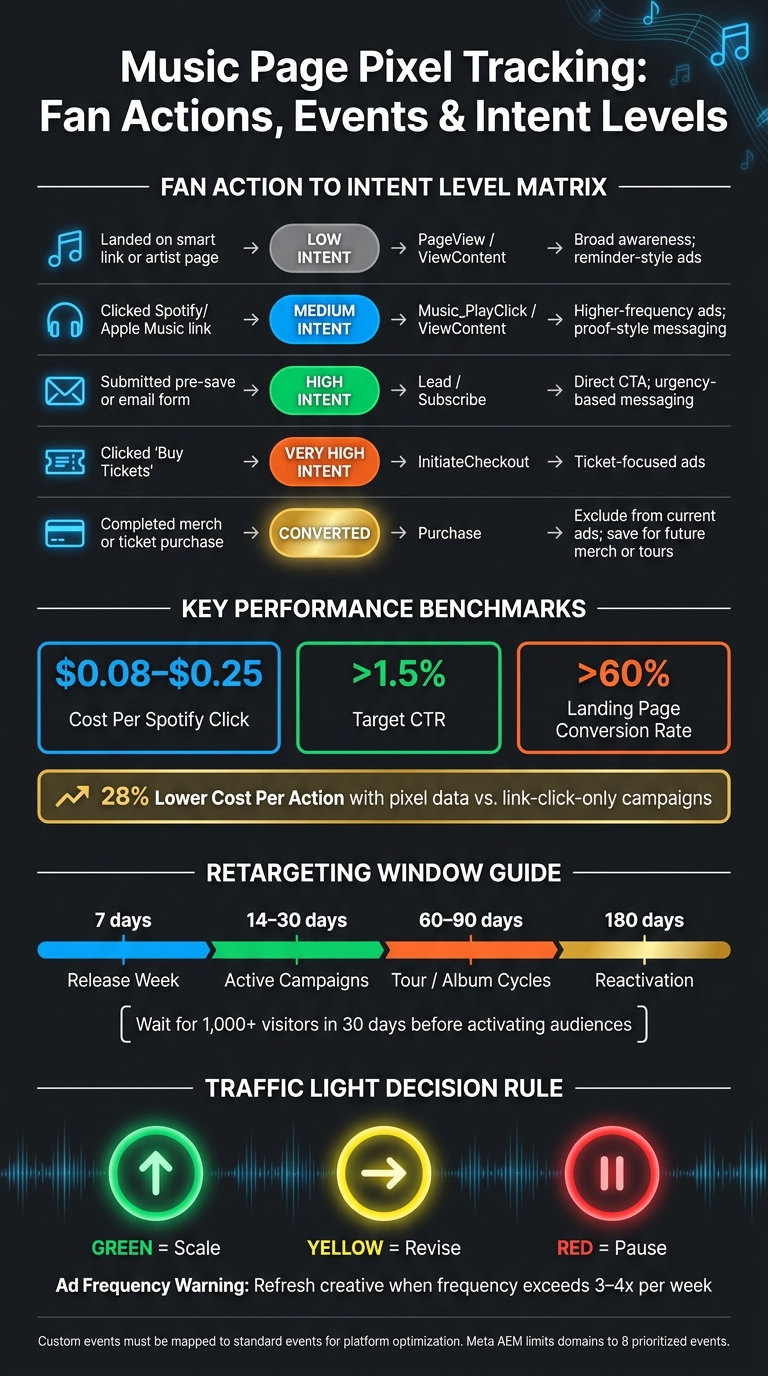
| Fan Action | Intent Level | Retargeting Approach |
|---|---|---|
| Landed on smart link or artist page | Low | Broad awareness; reminder-style ads |
| Clicked a streaming service link | Medium | Higher-frequency ads; proof-style messaging |
| Submitted pre-save or email form | High | Direct CTA; urgency-based messaging |
| Completed a purchase | Very High | Exclude from current ads; save for future merch or tours |
Your retention window should fit the campaign. Use 7 days for release week, 14–30 days for active campaigns, 60–90 days for tour or album cycles, and up to 180 days for reactivation.
Don’t rush small audiences into market. Wait until the audience reaches at least 1,000 visitors in 30 days. Smaller pools often perform poorly.
You’ll also want to exclude people who already converted. If someone already pre-saved, showing them another pre-save ad is just wasted spend and extra repetition.
Once you have 50+ conversion events, those high-intent actions can become lookalike seeds for the next campaign.
After you split audiences by intent, the next step is simple: watch the numbers that tell you what deserves more budget.
The reports that actually improve campaigns
Three metrics do most of the heavy lifting:
- Cost per conversion
- CTR
- Landing-page conversion rate
For music campaigns, solid benchmarks are a Spotify click cost of about $0.08 to $0.25, CTR above 1.5%, and landing page conversion above 60%.
Here’s the plain-English read: if CTR looks good but conversion is weak, the ad is probably doing its job. The page is usually the issue.
A simple traffic-light rule helps keep decisions clean: green, scale; yellow, revise; red, pause. It saves you from overthinking every dip or spike.
It also helps to pull pixel, ad, and streaming data into one Google Sheet or Looker Studio dashboard instead of bouncing between siloed reports.
One more number matters here: ad frequency. Once it climbs above 3–4 times per week, fans are seeing the same ad too often, and engagement usually starts to fall. That’s the point where new creative tends to help.
Repeat-promotion workflows after launch week
After launch week, pixel data shouldn’t sit there doing nothing. It should point people to the next offer.
Release week is just the first pass. After release day, retarget fans who visited your pre-save page during the lead-up and send them to the live track. They already showed strong intent, so you don’t need to introduce the song from scratch.
A few weeks later, you can move those same warm segments toward merch or other higher-value offers. Fans who joined your email list through a pre-save or smart link are a strong group for limited merch drops or physical releases.
For tour promotion, go after fans who already clicked your concert or event pages. They’ve already signaled interest, which makes ticket-buying ads for upcoming dates a much better fit.
PromoLinks.me supports pixel retargeting across smart links, artist pages, pre-save campaigns, and event pages.
Best Practices, Common Mistakes, and Key Takeaways
Setup errors that break tracking
After setup and event mapping, the biggest risk is bad data, not bad ads. Once your pixel is live, a few small mistakes can wreck the numbers fast.
- Missing domain verification blocks reliable iOS conversion attribution in Meta.
- Duplicate event counting: If the browser pixel and CAPI send the same event without a shared
event_id, Meta counts it twice. That inflates conversion totals and ROI reports.
A few other failure points can trip you up too.
Custom event names must match exactly between your page builder and ad platform. One small mismatch and the event may not track the way you expect.
Test code left in production is another easy miss. If test_event_code stays in place, events may appear to fire correctly but still not feed the optimization system.
Optimizing for the wrong objective can also waste spend. Use Conversions, not Traffic, so the platform looks for fans who actually reach the streaming service. Optimizing for a specific Spotify click-through event can cut cost per stream by 40% to 60% compared with optimizing for link clicks.
A short maintenance checklist for every release or event
Use this before every launch or event update.
| Check | What to Do |
|---|---|
| Live page check | Open the page in Meta Pixel Helper and confirm PageView fires. |
| Events fire correctly | Click your Spotify or primary action button and confirm the right event triggers in Events Manager. |
| Audience growth | Check that Custom Audiences are populating in Ads Manager. |
| Cost per result | Compare against the $0.08–$0.25 Spotify click benchmark. |
| Naming convention | Confirm the campaign naming format matches your active event names. |
Test in incognito mode to avoid cached data and browser extension issues.
Final takeaway
When the pixel is clean, the same data can power retargeting, reporting, and the next promo cycle.
Pixel tracking on music pages works when the setup is solid: the pixel is installed the right way, events are tied to real fan actions, and audiences are built around intent, not just page views. But good data doesn't stay good on its own. You have to review it often and carry those lessons into the next campaign.
PromoLinks.me supports music promotion tools like smart links, artist pages, pre-save campaigns, and event pages, which keeps pixel data tied to one workflow.
The short version: set up the pixel the right way, map the actions that matter, build segmented audiences, check your reports, and reuse what you learn for the next release, tour, or catalog push.
FAQs
Can a pixel track streams on Spotify or Apple Music?
No. A pixel can’t track streams directly on Spotify or Apple Music because those platforms don’t allow third-party tracking code on their sites.
The usual workaround is to send people through an intermediary landing page or smart link service, such as PromoLinks.me, where the pixel is installed. That setup tracks user intent by recording the click on the Listen button before the user heads to the streaming platform.
Which pixel events matter most for music pages?
Focus on high-intent events instead of basic page views. The big one is the click-through to a streaming platform. You’ll often track that as a custom conversion like Music_PlayClick or as a destination click.
For a full music strategy, put your attention on these events:
- ViewContent
- Music_PlayClick
- AddToPlaylist
- Lead
- Subscribe
- Purchase
How do I know if my pixel is set up correctly?
Use the Meta Pixel Helper Chrome extension. Then open your smart link or landing page in a new Chrome tab. If you see a green checkmark and a PageView event, your pixel is active.
If nothing shows up, first make sure you're using Chrome. Safari may block third-party cookies, which can get in the way. You can also use the Test Events tool in Events Manager to confirm that events fire in real time.
Give it a little time, too. Data can take up to 20 minutes to appear.
Related Blog Posts
Ready to create your smart links?
Join thousands of artists using PromoLinks to promote their music smarter.
Get Started Free