Social Media Smart Link Checklist for Releases
If your smart link is wrong when release-day traffic hits, you lose streams, fan emails, and clean data right away. I’d do one final check 30 to 60 minutes before posting, with extra focus on mobile, because most social clicks now come from phones.
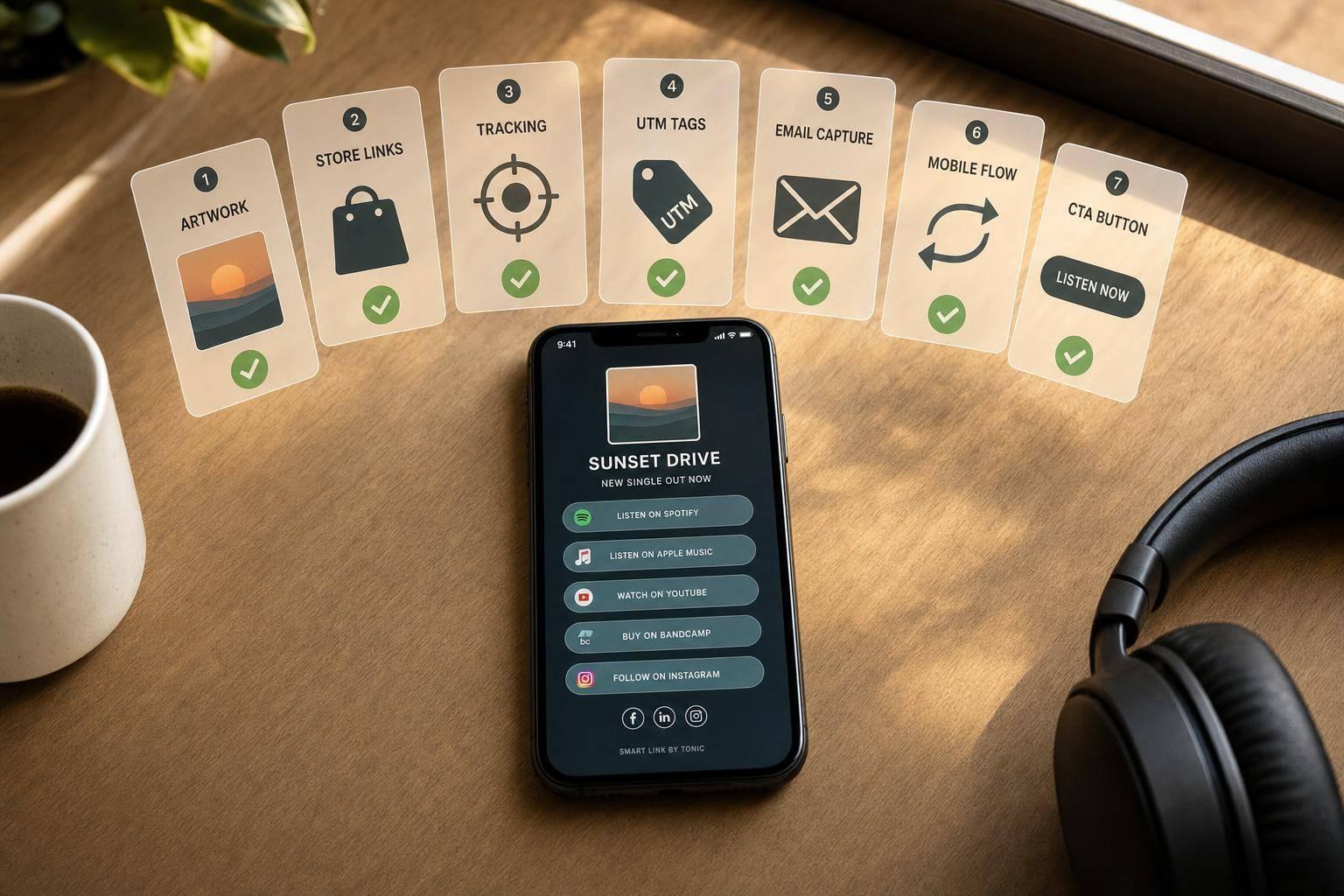
Here’s the short version of what I’d check before any post goes live:
- Artwork and release details: match the live DSP version exactly
- Store buttons: put Spotify and Apple Music first, then test every link
- Tracking: make sure Meta Pixel, TikTok Pixel, and GA4 are firing
- UTM tags: use the right tagged link for each placement
- Email form: submit a test signup and confirm it shows in the dashboard
- Mobile flow: test inside Instagram, TikTok, Facebook, and X on a real phone
- CTA: keep one clear action, like “Listen now”
A lot of release-day issues are small but costly: a broken Apple Music link, old cover art, missing UTMs, or a slow mobile page. Since the first 24 to 72 hours often drive most of the early clicks, I’d treat this check like part of the launch itself. If you haven't already, make sure you've followed a pre-save campaign guide to maximize that early momentum.
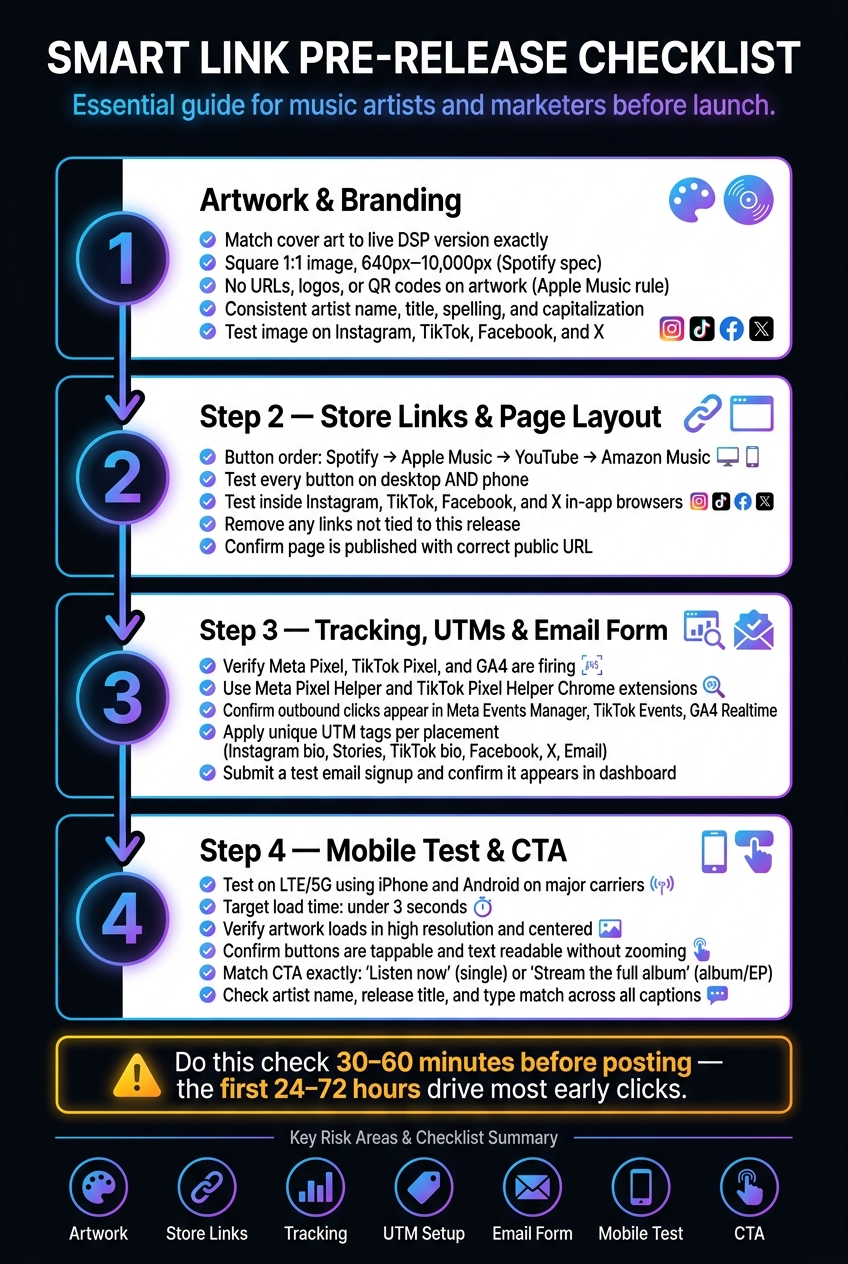
Smart Link Pre-Release Checklist: 4-Step Launch Process
How to Make a Smart link for your music (SubmitHub Links)
sbb-itb-e819543
Quick checklist
| Area | What I’d verify | Main risk if missed |
|---|---|---|
| Artwork | Cover, title, artist name, release info | Fans see mismatched release info |
| Store links | Button order and destination URLs | Lost streams from broken clicks |
| Tracking | Pixels, analytics, outbound click data | Bad campaign reporting |
| UTM setup | Tagged URL per social placement | Mixed up traffic sources |
| Email form | Form is on and test signup works | Lost fan list growth |
| Mobile test | Load speed, tap targets, in-app browser flow | Drop-off on phones |
| CTA | Same wording on post and page | Lower click-through |
In short: I’d make sure the page looks right, links work, tracking is live, email signup works, mobile is clean, and the CTA matches the post copy exactly. For more tips, check out our music promotion guides.
1. Confirm artwork, branding, and release details
Open Spotify and Apple Music next to your smart link and compare artwork, title, artist name, and release details. Start there, because that’s the first thing fans notice.
Use final artwork that matches the distributed release
Use only the final delivered artwork. Before launch, remove draft versions, alternate concepts, and any crop that doesn’t match the live release.
Spotify’s cover art specs call for a square 1:1 image between 640 px and 10,000 px per side, in sRGB at 24 bits per pixel. Apple Music says cover art should not include website addresses, logos, QR codes, or advertising. If any of that is still on the image, take it off before launch. In PromoLinks.me, you can swap the image and preview the change right away.
Then test the image on a phone across Instagram, TikTok, Facebook, and X. Small screens can be unforgiving. Keep key text inside the safe area and make sure it’s still easy to read.
Keep branding and wording consistent across all pages
Check every text field, line by line. Match the artist name, title, featured credits, version label, spelling, and capitalization across the smart link, DSP listings, and social captions.
Use U.S. date format like August 1, 2026 and USD pricing like $15.00. Before anything goes live, cross-check the smart link, scheduled posts, and DSP listings. Tiny mismatches can make a release look sloppy fast.
This ensures your pre-save campaigns look professional from day one. After the visual check passes, move to store order and destination links.
2. Check store order, destination links, and page setup
Put core streaming services first and test every button
For U.S. releases, put the main streaming services first in this order: Spotify → Apple Music → YouTube / YouTube Music → Amazon Music. Add Pandora only if it makes sense for your audience.
Then test every button on desktop and on a phone. That includes taps from Instagram, TikTok, Facebook, and X. A link can look fine in one place and break in another, so it’s worth checking each path before the release goes out.
Inside PromoLinks.me, you can change any destination URL from the dashboard without changing the public smart link URL. That makes fixes much less painful if a store link needs to be swapped at the last minute.
After the core buttons are working, cut any extra links that don’t help this release.
Add only supporting links that serve this release
Keep supporting links limited to items directly tied to this release, like merch for the drop or tour dates that are already on sale.
The key is simple: keep the streaming buttons easy to see at the top. Put any supporting links below them, and use plain action text so fans know exactly where each button goes.
Review the smart link page layout inside PromoLinks.me
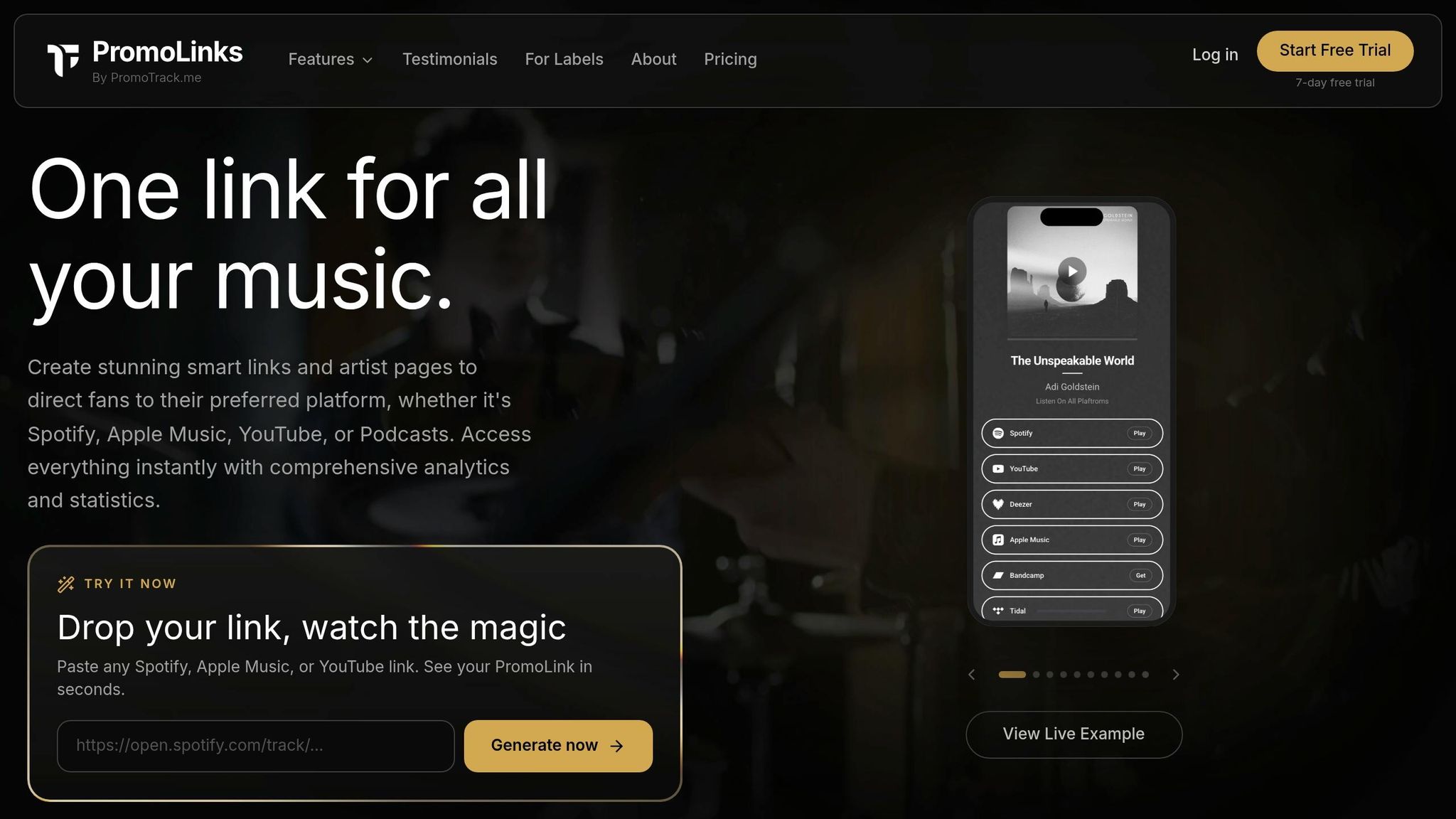
Open the page in PromoLinks.me and check the layout on mobile. Look at button contrast and font readability. If you’re using audio preview, make sure it plays the correct track and feels clean on a phone.
Confirm the page is published. Then use that same public URL in every scheduled post, bio link, and ad.
When the page is live, move on to tracking and fan capture. This is the best time to capture fan emails to build your long-term audience.
3. Verify tracking, UTM tags, and fan email capture
Test pixels and analytics before traffic hits the page
Once the page is live, set up tracking and fan capture before release traffic starts rolling in.
Before you publish anything, check that Meta Pixel, TikTok Pixel, and GA4 are installed and firing on the smart link page. The simplest way to do this is with the Meta Pixel Helper and TikTok Pixel Helper Chrome extensions. Open your smart link URL, then make sure each pixel shows as active.
Next, click through to a streaming service or store link. After that, confirm that page views and outbound clicks show up in Meta Events Manager, TikTok Events, and GA4 Realtime. If the data isn't showing now, it definitely won't fix itself when traffic hits.
In PromoLinks.me, you can connect Meta, TikTok, X, Spotify, and Google Analytics pixels right from the dashboard. Connect them once, and every smart link visit can feed your ad audiences and build retargeting lists from fans who clicked but didn't stream.
Apply consistent UTM tags for every social placement
Use a different tagged URL for each placement. This keeps your reporting clean and saves you from guessing later.
Use this UTM structure:
| Placement | utm_source | utm_medium | utm_content |
|---|---|---|---|
| Instagram bio | instagram |
social |
instagram_bio |
| Instagram Stories | instagram |
social |
instagram_story |
| TikTok bio | tiktok |
social |
tiktok_bio |
| Facebook post | facebook |
social |
facebook_feed_post |
| X post | x |
social |
x_post |
| Email newsletter | email |
newsletter |
email_launch_blast |
Set utm_campaign to something like release_title_aug2026 across all placements so you can filter the full campaign in GA4 Realtime.
PromoLinks.me also includes a built-in Copy Link tool that adds the correct utm_source for each platform and sends that data into the Top Referrers section of the analytics dashboard.
Before launch, open each draft post and double-check the tagged URL. Under deadline pressure, it's very easy to drop the Instagram bio link into a Story by accident.
Turn on and test the fan email form
If growing your list is part of the campaign, the email form needs to be on and working before any traffic arrives.
Inside PromoLinks.me, make sure the email capture module is turned on for this smart link. Then submit a test entry and check that it appears in the dashboard with the correct timestamp.
A few quick form tweaks help here:
- Use clear form copy
- Replace default button text with "Join the List" or "Get Updates,"
- Add a short consent line such as "By signing up, you agree to receive email updates from [Artist Name]. You can unsubscribe at any time."
After the form passes, move to mobile testing and the final social CTA.
4. Run mobile tests and review the final social CTA
Test the link from Instagram, TikTok, Facebook, and X on a phone
Once your pixels and email capture are live, test the page on actual phones before you post.
Check every live entry point you plan to use on LTE/5G: Instagram bio, Story link sticker, TikTok bio and video description, Facebook post, and X post. Use at least one iPhone and one Android device on major U.S. carriers like Verizon, AT&T, or T-Mobile. That way, you can spot issues the same way fans will.
Shoot for a load time under 3 seconds on LTE/5G. Run each path once. In-app browsers don't always behave the same, and Apple Music pre-saves may show an "Open in Safari" prompt instead of finishing inside the app. Check that the prompt appears cleanly.
Before you post, confirm:
- Artwork loads in high resolution and stays centered without scrolling
- All buttons are easy to tap and spaced clearly
- Text is readable without zooming
- The email form stays visible and is easy to fill out on a phone
Match the smart link CTA to the social post copy
After the page passes mobile testing, lock in the final CTA.
Use one main CTA and repeat it exactly across the post and landing page. For a single, go with "Listen now." For an album or EP, use "Stream the full album." Keep that main CTA above any secondary actions like "Follow on Spotify" or "Watch the video." Put it near the top and make it the most visible button.
Before you post, double-check that the artist name, release title, and release type match across the smart link page and every caption draft. Spelling and capitalization should be identical. It seems small, but little mismatches can chip away at fan trust.
In PromoLinks.me, you can edit the page title and description in one place, which makes it much easier to keep things lined up across campaigns.
Conclusion: Post only after every checklist item is done
Before you hit publish, do one last pass on artwork, store order, destination URLs, pixels, UTM tags, fan email form, mobile load and layout, and CTA consistency. Once everything checks out, your smart link is ready to go live.
PromoLinks.me keeps smart link creation, fan email capture, analytics, and QR codes in one place, so you're not bouncing between tools on release day.
FAQs
How soon before posting should I test my smart link?
Test your smart link before you publish it or share it in public. Open it on both mobile and desktop and make sure your cover art shows up the way it should, the streaming buttons send people to the right places, and your call to action sits where people will actually notice it.
If you're running a pre-save campaign, go through the authorization flow yourself before launch. Also check that the link moves cleanly from pre-release to live mode and that tracking works the way you expect.
What should I do if a store link breaks on release day?
If you spot a broken link on release day, check your landing page right away. Make sure your streaming buttons work and send fans to the right places. Also confirm that your smart link moves from pre-release to live-release mode without any errors.
If one platform button is still broken, update the URL in your PromoLinks.me dashboard. You can fix the page without changing your shareable link.
Why do I need separate UTM tags for each social post?
Separate UTM tags let you track exactly which platform and campaign send traffic to your release. When you add distinct parameters to your PromoLinks URL, you get a much clearer view of your top referrers.
That means you can spot where your audience is most active and which channels deliver the best results. With that data in hand, it’s much easier to put more effort behind the promo work that’s already paying off.
Related Blog Posts
Ready to create your smart links?
Join thousands of artists using PromoLinks to promote their music smarter.
Get Started Free