
Smart Link Reporting Guide for Indie Labels
A smart-link click isn’t proof of a stream. I track ad spend, link actions, and listening results separately, then compare matching dates before changing budgets.
My reporting workflow covers four steps:
- Set up tracking: Test destinations, use consistent campaign names and UTM tags, and assign account owners.
- Build the dashboard: Keep source data separate, define cost formulas, and set targets from similar releases.
- Check the numbers: Align dates, currency, and reporting windows. For example, $100 spent on 200 outbound clicks equals $0.50 per outbound click - not per stream.
- Review and act: Share reports by role, check campaigns daily or weekly, and publish monthly results by the fifth business day. Give each next step an owner and deadline.
I start with <u>one release</u> to test the workflow. The goal is simple: see what the budget bought using music promotion tools, track how listening changed, and avoid confusing correlation with cause.
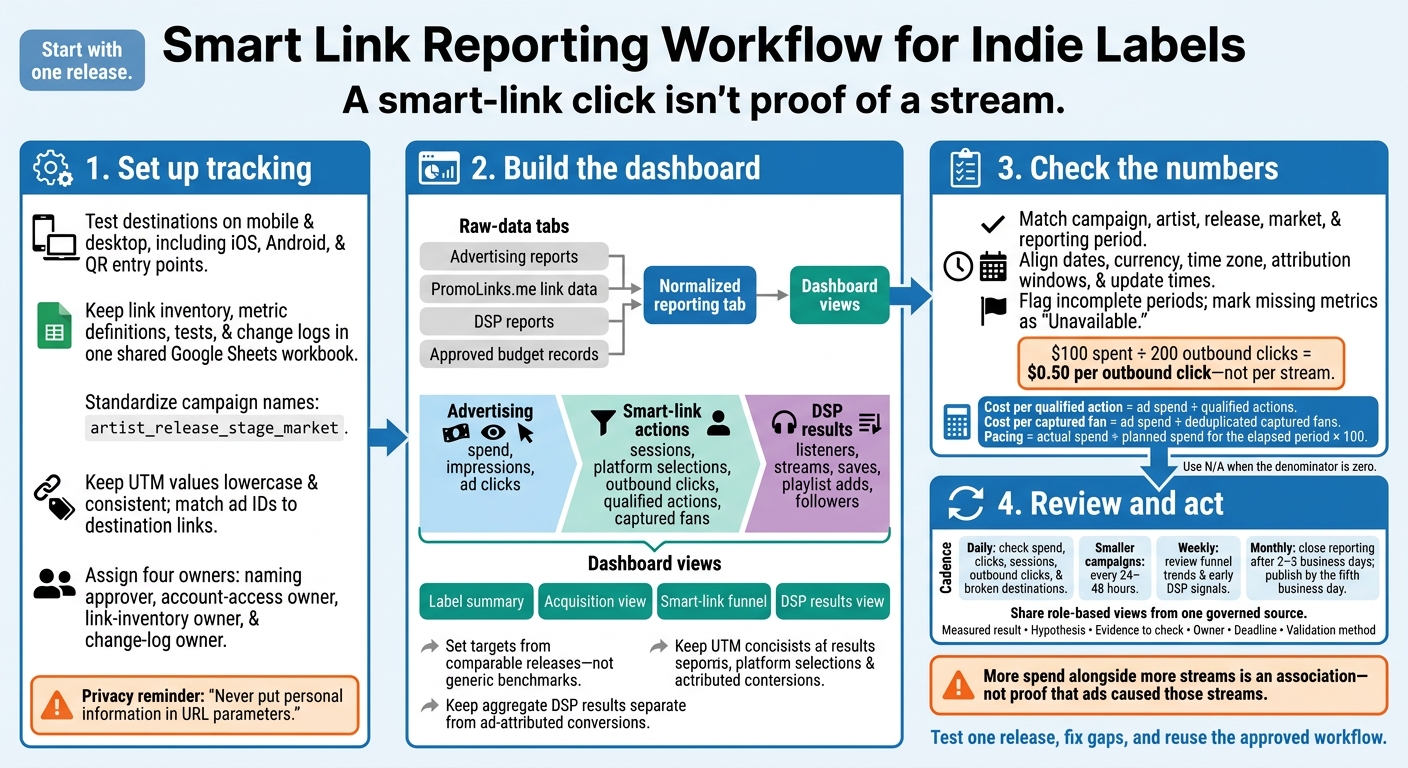
Smart Link Reporting Workflow for Indie Labels
2. Set Up Links, Campaign Names, and Tracking
Prepare Links, Access, and Metric Definitions
Keep link inventory, metric definitions, tests, and change logs in one shared Google Sheets workbook. Record the artist, title, version, release date, smart-link URL, destination URLs, campaign name, UTM values, owner, status, last update, and notes.
If you need a single release hub, create a PromoLinks.me page with QR codes, pre-save functionality, and real-time link analytics. Check that every destination opens the correct U.S. release on Spotify, Apple Music, YouTube, and other priority services on both mobile and desktop. Define each data source, then lock down naming and tracking as part of your music marketing checklist before release.
Set role-based access for the smart-link platform, analytics account, ad accounts, social accounts, email platform, QR-code source, and streaming dashboards. Record each account’s owner, backup admin, authentication method, and recovery contact. That way, access changes won’t interrupt measurement, and reporting ownership stays clear when campaigns move between teams.
In the metric-definitions tab, document each metric’s meaning, source, formula, reporting period, attribution window, currency, time zone, update schedule, and owner. Specify whether counts are total or unique. Turn on only the pixels and tracking integrations tied to a specific reporting decision, and confirm that any required consent is in place. Never put personal information in URL parameters.
Standardize Campaign Names and UTM Tags
Use lowercase values, underscores, and a fixed naming pattern:
artist_release_stage_market
Define utm_source as the referring source, utm_medium as the channel type, utm_campaign as the release and objective, and utm_content as the ad version or placement. Use utm_term only for paid-search keywords.
Keep the campaign value identical across channels so the release stays in one reporting row. Give paid social, organic bio, email, press, creator, and QR traffic separate source/medium pairs. UTM values are case-sensitive, so keep them lowercase and consistent.
Match Ad IDs to Destination Links
Map ad IDs to destination links so spend and link data line up in the dashboard. In the inventory, store the campaign ID, campaign name, ad-set or ad-group ID, ad ID, asset or creative ID, destination-link ID, approved UTM values, launch date, end date, market, and budget.
Keep the platform’s original IDs alongside readable names. This prevents later name changes from breaking reconciliation. Where supported, use dynamic URL parameters to pass campaign or ad identifiers, then test whether the analytics system records the resolved values.
Match spend exports and link reports at the campaign or creative level. Don’t infer user-level attribution unless both systems support it.
Test Tracking and Assign Owners
Before launch, test every ad, social post, email button, creator link, and QR code on actual iOS and Android devices. Check that destinations are correct, redirects work, UTM values are recorded, and links match the release. Scan QR codes from the expected print distance, and verify consent behavior for any analytics or advertising pixels.
Log each test’s date, device, source, result, and fix. These checks help catch attribution problems before they distort KPI readings and keep dashboard inputs clean.
Assign four owners: naming approver, account-access owner, link-inventory owner, and change-log owner. Require review before anyone changes a live destination, UTM value, campaign name, or tracking configuration. For each change, record the date and time, editor, old value, new value, reason, affected release, and approval. Use the label’s chosen U.S. time zone.
Once tracking is stable, configure the dashboard to compare spend, clicks, and streams on the same release row.
sbb-itb-e819543
3. Build the Dashboard and Set KPI Targets
Build Dashboard Views Around Decisions
With naming and tracking in place, build a reporting layer that turns exports into decisions. Create a raw-data tab for each source: advertising reports, PromoLinks.me link data, DSP reports, and approved budget records. Use manual exports where available, and keep the original columns and export timestamps. Then build a normalized reporting tab. Calculate dashboard metrics from that tab - not edited source files. Mark missing metrics as Unavailable rather than estimating them.
Use tracked campaign IDs, UTM values, and release rows from the inventory to populate these views:
- Label summary: Include artist, release, campaign stage, market, spend, impressions, clicks, link sessions, qualified actions, captured fans, and DSP outcomes. Use this view to allocate budgets.
- Acquisition view: Include source, campaign, ad set, ad ID, placement, audience, market, device, impressions, clicks, CTR, CPC, and spend. Use it to assess ad content, audiences, and traffic efficiency.
- Smart-link funnel: Include sessions, platform selections, outbound clicks, email captures, and other defined fan actions. Use it to assess link quality.
- DSP results view: Include listeners, streams, saves, playlist adds, followers, and streams per listener where available. Use it to assess listening response. DSP dashboards provide release-level streams, listeners, saves, playlist adds, and streams per listener.
Advertising reports provide delivery and cost data. PromoLinks.me provides available link actions, while DSP dashboards provide listening metrics. Keep aggregate DSP results separate from ad-attributed conversions.
Define Funnel Metrics and Cost Formulas
Next, set the formulas behind each view. Match spend and actions by campaign, artist, release, market, and reporting period. Define eligible sessions as sessions in which a platform selection could occur. Define each qualified action before counting it - for example, a completed email signup or confirmed pre-save. Deduplicate captured fans using a stable identifier, such as a normalized email address plus consent status.
Use N/A when the denominator is zero. Label outbound-click events ÷ sessions as outbound clicks per session: repeat clicks can push this metric above 100%. For DSP save rate, state whether you’re dividing saves by listeners or streams.
| Metric | Formula | Interpretation | Decision supported |
|---|---|---|---|
| Ad CTR | Ad clicks ÷ impressions × 100 | Shows how well ad content and targeting generate clicks | Test ad content, audience, placement, or message |
| CPC | Ad spend ÷ ad clicks | Average cost of an ad click | Compare traffic efficiency |
| Platform-selection rate | Sessions with a platform selection ÷ eligible sessions × 100 | Shows how often visitors choose a destination | Improve page layout or destination choices |
| Cost per outbound click | Ad spend ÷ outbound-click events | Cost to generate a click from the smart link to a destination | Compare link-level efficiency |
| Cost per qualified action | Ad spend ÷ qualified actions | Cost to generate the label’s chosen high-value action | Decide whether campaign quality justifies more spend |
| Cost per captured fan | Ad spend ÷ deduplicated captured fans | Cost to acquire a consented first-party contact | Evaluate fan-growth efficiency |
Set Baselines and Spending Thresholds
Set targets using past campaigns with similar genre, audience size, release stage, market, ad format, platform mix, and budget - not generic benchmarks. Apply those comparisons to delivery, link efficiency, fan growth, DSP response, and budget pacing.
For example, use the median results from the last few comparable releases as a starting baseline.
Before reallocating spend, set a minimum observation period and action count to account for reporting delays and sample size. Define separate escalation rules for broken links, zero tracked sessions despite confirmed ad clicks, and spend materially exceeding the approved daily budget.
Calculate Pacing = actual spend ÷ planned spend for the elapsed period × 100, with thresholds at both the campaign and source levels. A cheaper click isn’t a win if it doesn’t lead to qualified actions.
Align Dates, Currency, and Update Times
Display USD amounts as $125.50, use MM/DD/YYYY dates, and keep percentage precision consistent. Document one reporting time zone, such as America/New_York, and account for daylight saving time.
Show the reporting period and a last updated timestamp on every dashboard view. Flag partial days and incomplete periods as incomplete. Keep attribution windows - including click-through versus view-through windows - and conversion-date rules visible beside each KPI. Record timing gaps in the data-notes column rather than forcing ad clicks, link sessions, and DSP listeners to match.
4. Share Reports and Run Monthly Reviews
Once the dashboard is built, set clear rules for sharing reports and reviewing results.
Tailor Reports and Access by Role
Share role-based reports from one governed source. Give each audience a different view of the same normalized dataset - not a separate export.
| Audience | Report focus |
|---|---|
| Leadership | Spend, reach or clicks, sessions, outbound clicks and cost, fan growth, key releases, major variances, and required decisions |
| Marketing | Channel, audience, ad version, ad-set, budget, frequency, and funnel detail |
| Artists and managers | Fan growth, platform selections, top markets, release results, and audience insights |
| Finance | Spend by campaign, billing period, currency, vendor, and campaign dates for invoice reconciliation |
Give external partners view-only access to the fields they manage. Share aggregate performance, not raw fan email addresses or personally identifiable information. Document each report’s owner, editors, recipients, reporting period, and access-review date.
Schedule Daily, Weekly, and Monthly Checks
Check spend, clicks, sessions, outbound clicks, and broken destinations daily. Smaller campaigns can use a 24–48-hour schedule. These checks help protect your budget.
Review funnel trends and early DSP signals weekly to keep campaigns on track. Close monthly reporting after 2–3 business days, then publish by the fifth business day so the team can lock in decisions.
Archive a dated, read-only final report. Include the reporting window, attribution window, currency, filters, data limits, source update date, and change log. Record later corrections instead of silently replacing the original. If results drift, check the funnel and data gaps next.
Investigate Funnel Gaps and Data Differences
Trace discrepancies in order: spend, ad clicks, smart-link sessions, platform selections, and downstream outcomes.
Check repeat clicks, abandoned loads, ad blockers, consent limits, bot traffic, time-zone mismatches, currency conversion, and reporting delays. Then verify tags, duplicate links, redirects, and broken destinations before judging performance.
Compare releases at the same release age and campaign stage. Then break down results by source, market, and ad version. Focus first on the largest drop-off you can control, with enough data to support action.
More spend alongside more streams is an association - not proof that ads caused those streams. Add your findings to the monthly review log.
Record Findings, Owners, and Next Steps
Start each monthly review with last month’s actions. Mark them completed, late, blocked, or disproven, and carry unresolved work forward. Use percentage points for rates and percent for volume and cost. Label each variance as versus the prior period or target.
| KPI | Current period | Previous period | Target or baseline | Variance | Diagnosis | Owner | Deadline | Next action |
|---|---|---|---|---|---|---|---|---|
| Platform-selection rate | Closed-month rate | Prior-month rate | Comparable-release median | Percentage-point change vs. prior month | Separate the drop from its likely cause | Growth lead | Assigned due date | Test affected devices and destinations |
| Cost per captured fan | Reconciled cost | Prior-month cost | Approved cost target | Percent vs. target | Check source mix and capture quality | Marketing lead | Assigned due date | Test the weakest source or signup step |
| Spend | Reconciled spend | Prior-month spend | Approved monthly budget | Dollar and percent vs. budget | Check approvals and billing differences | Finance owner | Assigned due date | Resolve invoice or approval gaps |
End each review with a few specific decisions about budget, ads, audiences, landing pages, links, or release timing. Record the measured result, hypothesis, evidence to check, owner, deadline, and validation method as separate fields. Log metric-definition changes and keep campaign IDs stable so future reviews remain comparable.
5. Conclusion: Smart Link Reporting Checklist
Use this checklist before approving the monthly smart-link report.
- Access and retention: Confirm account owners, backup owners, recovery details, permissions, retention settings, and export timing.
- Links and tagging: Retest every destination through desktop, mobile, and QR entry points. Check redirects, tracking, campaign names, UTM values, and ad-to-link ID matches.
- Dashboard and measurement: Reconcile delivery, link actions, and music analytics as separate layers. Check each KPI’s formula, source, historical baseline, goal, and review threshold.
- Sharing and follow-through: Finish the privacy review and confirm report access. Document each monthly decision with its action, owner, deadline, and success measure.
Test the full workflow on one release, fix any gaps, and reuse the approved naming rules, dashboard, and monthly review template. Archive the template for the next monthly review.
FAQs
How can I test whether ads drive more streams?
Compare campaign data from your ad platforms with your PromoLinks.me analytics. Give every ad its own UTM parameters so you can see which sources drive the most clicks and platform conversions.
Add tracking pixels in your PromoLinks.me settings to measure engagement and build retargeting audiences. Keep a weekly spreadsheet of ad spend, streams, saves, and link click-through rates to check which channels deliver the best return.
How much data do I need before shifting budgets?
Track results in your dashboard for 4 to 6 weeks. Check analytics weekly to see which sources lead to actions that matter: streams, saves, and sign-ups.
If one source consistently performs much better than the others, you can shift spending toward it during weekly reviews - even before the 6-week mark. Use results from the full 4-to-6-week cycle to plan budgets for future releases.
How do I set KPI targets for my first release?
Match your KPI targets to your goals. Before release, aim for a 5% pre-save conversion rate. After release, focus on quality: a 4–6% save rate is healthy, while anything above 10% points to very strong engagement. Emerging artists should aim for 1.5–2.5 streams per listener; 3.0+ indicates strong repeat listening.
Use PromoLinks.me real-time analytics to track data you can act on, such as click-through rates and source performance, rather than total lifetime streams.
Related Blog Posts
Ready to create your smart links?
Join thousands of artists using PromoLinks to promote their music smarter.
Get Started Free