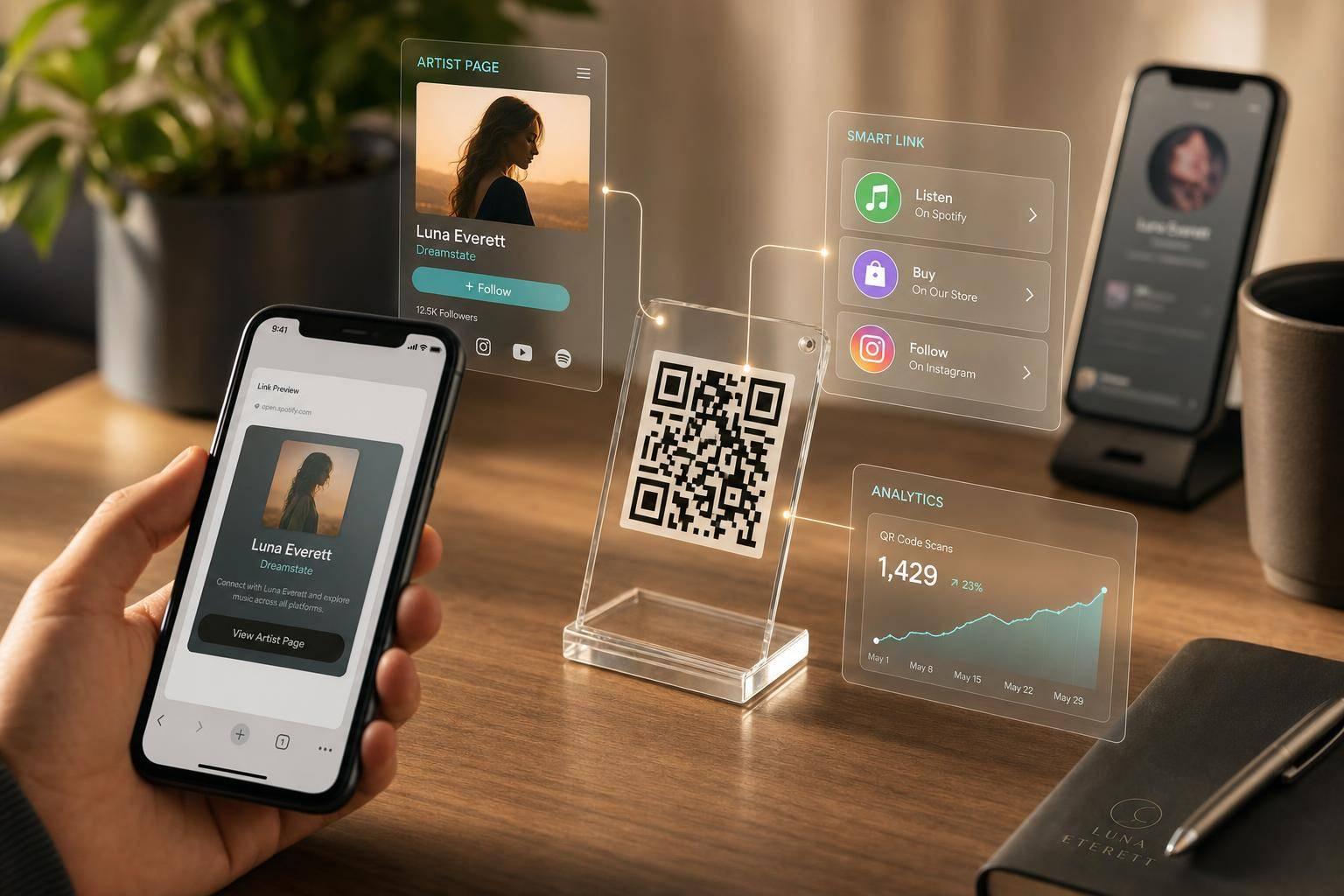
How QR Codes Connect Smart Links and Artist Pages
How QR Codes Connect Smart Links and Artist Pages
A QR code works best when it sends fans to the right page. If you want plays for one release, I’d send people to a smart link. If you want them to find your music, bio, socials, merch, and shows, I’d send them to an artist page.
Here’s the short version:
- I’d use a smart link for a single, album, EP, playlist, or pre-save
- I’d use an artist page for business cards, merch inserts, venue signs, and long-use print
- I’d generate the QR code from the final public URL
- I’d test it on iPhone and Android, on Wi-Fi and cellular
- I’d use high contrast, enough empty space around the code, and the right print size
- I’d track scans, visits, and platform clicks after it goes live
One stat stands out: by the end of 2023, 28% of U.S. adults had used QR codes, and 54% of adults ages 18–29 reported using them in a 2021 survey. That means the scan habit is already there. What matters is where the code sends people and what they can do next.
If I were setting this up, I’d keep the path simple: scan → mobile page → Spotify, Apple Music, or YouTube. I’d also keep one QR code tied to one main URL so I can update the page later without printing a new code.
This article explains how I’d choose between a smart link and an artist page, build the destination in PromoLinks.me, test the scan flow, place the code where fans will stop long enough to use it, and check performance after launch.
I Passed Out 1,000 QR Codes to Promote my Mixtape at Rolling Loud (Insane Results!)
sbb-itb-e819543
Choose the Right Destination: Smart Link or Artist Page
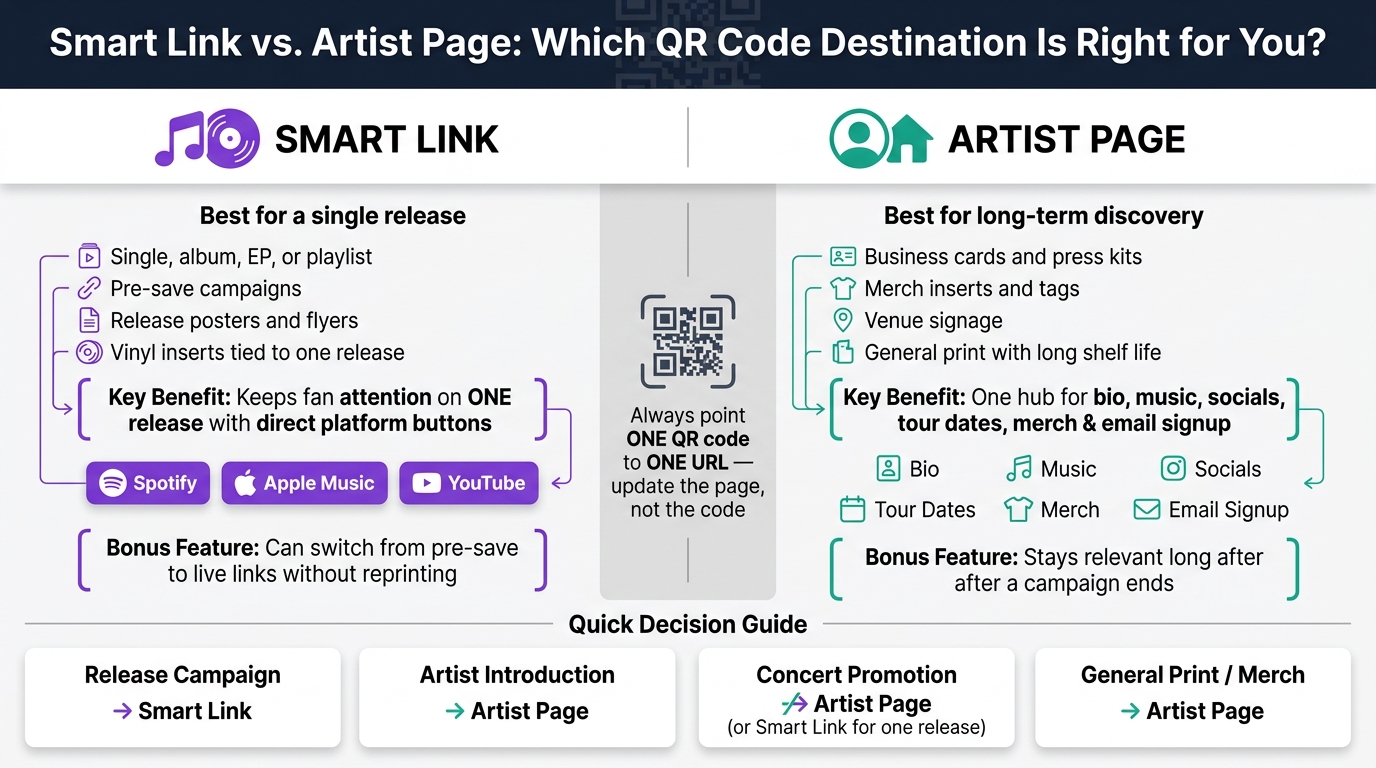
Smart Link vs Artist Page: Which QR Code Destination Is Right for You?
A QR code only works if it sends fans to the right page. Pick the destination before you make the code. Once that part is set, you can build the page and connect the right platform links.
A smart link is a page built around one release, like a single, album, EP, playlist, or pre-save campaign. It usually shows the cover art, the release title, and clear buttons for Spotify, Apple Music, and YouTube. A fan lands on the page and taps the platform they already use.
An artist page is a longer-term home base. It can include your bio, music links, social profiles, tour dates, merch, and an email signup in one spot.
Use one QR code that points to a single mobile page, so you can update the destination later and track results in one place.
Here’s a simple rule of thumb:
| Use Case | Best Destination | Why |
|---|---|---|
| Release campaign | Smart link | Keeps attention on one release with platform buttons |
| Artist introduction | Artist page | Gives new fans context: bio, music, socials, and more |
| Concert promotion | Usually an artist page; use a smart link when the show promotes one release | Brings together music, dates, tickets, and merch |
| Merchandise insert | Smart link for a release; artist page for brand discovery | Match the page to the goal |
| General print use | Artist page | A long-term page stays useful beyond one campaign |
When to Use a Smart Link
A smart link works best when the fan wants one thing, like hearing a specific release. If your QR code appears on a release poster, flyer, or vinyl insert, this setup keeps the experience tight and simple. The fan scans, picks Spotify, Apple Music, or YouTube, and they’re there.
There’s also a practical upside. A smart link can begin as a pre-save page before release day, then switch to live listening links on Spotify, Apple Music, and YouTube once the release is out. Because the QR code points to one central URL, you can update the destination after printing without redoing the artwork. That means the same code can work before release day and after the song is live.
When to Use an Artist Page
An artist page makes more sense when the QR code needs to support more than one kind of discovery. Think business cards, press kits, venue signage, and general merch inserts. Those items can stay out in the world for weeks or months. A release-specific smart link may go stale fast. An artist page has more staying power.
Start the page with your name, a photo or logo, and one clear action near the top, like Listen now, See tour dates, or Join the mailing list. Then add the rest: your bio, music, socials, merch, and email signup. That way, the scan still makes sense long after the first promo push is over.
Build Your Destination in PromoLinks.me
Now it’s time to build the destination page. Create a new smart link or pick the artist page you already have, then add the release title, artist name, cover art, and page type. After that, point the QR code to that page. This setup matters because you can swap out links later without printing new materials.
Add Spotify, Apple Music, and YouTube Destinations
Add your Spotify, Apple Music, and YouTube links, then test every one before you publish. Make sure Spotify opens the right track or album, Apple Music opens the right song or album in the right region, and YouTube opens the official video, lyric video, live performance, or channel.
Once the links check out, pick a template that fits the artwork and tweak the colors to match the release. Then edit the link slug so it’s short and easy to remember, and lock it before printing. If you change the slug later, the QR code you already printed will no longer send people to the right address.
Plan for Pre-Release and Post-Release Link Changes
Think of the QR code as the fixed offline entry point and the PromoLinks.me page as a hub for music promotion across platforms. Before release day, send people to your pre-save campaign. Once the release is live, update the page so it shows the live Spotify, Apple Music, and YouTube links. Your printed poster, postcard, or album insert stays the same, and the QR code keeps sending people to the same PromoLinks.me URL.
Once the page is live, generate the QR code and test how it scans on mobile.
What You Need Before Publishing
Before you publish and generate the QR file, make sure you have:
- Working Spotify, Apple Music, and YouTube links, or a pre-save URL if the release is not out yet
- Approved cover art
- Correct artist name and release title
- A short call to action, such as Scan to listen or Scan to pre-save
- An iPhone and an Android phone for testing
- A high-resolution QR file for print
After the page goes live, copy the public URL and open it in a private browser window to make sure it loads without a login. Then send the QR file to your designer or printer. Don’t resize or recolor it in a way that lowers contrast or warps the code.
Generate the QR Code and Test the Mobile Scan Flow
Once the destination is live, turn it into a QR code and test the full scan path. After you publish the page, generate the code from the final public URL. Use that exact published URL when you create it. Download an SVG for print or a high-resolution PNG for digital use.
Go with a dynamic QR code. That way, the printed code stays the same even if you change the destination later.
Then test the full fan journey, from camera scan to platform tap. On iPhone, open Camera, scan the code, and tap the link. On Android, use Camera or a QR scanner, then tap the prompt. The fan should land on the PromoLinks.me page and choose Spotify, Apple Music, or YouTube. From there, the service should open in its app or mobile site, depending on the device.
What Happens When a Fan Scans the Code
Use one iPhone and one Android phone. Make sure the page opens the right way, reads well on mobile, and that each Spotify, Apple Music, and YouTube button points to the correct destination. Check that back navigation takes the fan back to the PromoLinks.me page and that no certificate, redirect, or page-not-found warning shows up.
Then switch off Wi-Fi and run the same test on cellular data. Weak mobile service can slow the landing page, so test it in the same kind of conditions fans will face at the event before you print anything.
Print Issues That Break Scans
The main print problems are low contrast, a cramped quiet zone, glare, distortion, and undersizing. Use a dark code on a light, matte background and keep the quiet zone clear on all sides. A good rule is to size the code at about one-tenth of the scanning distance.
Print a proof on the final material, then scan it under real lighting from the farthest viewing distance. Don’t place the code across folds, seams, curved surfaces, or glossy finishes that can bounce stage lighting back into the camera.
Where to Place QR Codes in Print and Live Settings
Once a code scans cleanly, placement is what decides whether fans use it at all. A flyer asks for fast action. A poster gives someone only a few seconds. That changes the right code size, the scan distance, and the call to action. So the setup should fit the setting.
Match the Placement to the Fan's Intent
Use a release smart link on a concert poster, flyer, or venue sign when you're pushing one song or album. Use an artist page on business cards, merch tags, stickers, table cards, and album inserts when fans may want more than one thing, like music, social links, tour dates, or other updates.
Use the table below to match viewing distance and item type to the best destination.
| Placement | Viewing distance | Scan time | Recommended destination | Main testing concern |
|---|---|---|---|---|
| Business card | 6–16 inches | 15–60 seconds | Artist page | Small print size, glare, and scanning from an angle |
| Album insert / CD booklet | 6–18 inches | 30 seconds–2 minutes | Release smart link or artist page | Curved, glossy, or tightly designed paper |
| Vinyl sleeve | 8–24 inches | 30 seconds–2 minutes | Release smart link or artist page | Textured stock, large artwork, and limited quiet-zone space |
| Flyer | 1–3 feet | 10–30 seconds | Release smart link or artist page | Code size, visual clutter, and hurried scans |
| Merch-table card / table tent | 1–3 feet | 15–60 seconds | Artist page or release smart link | Low light, reflections, and other table graphics |
| Poster | 3–10 feet | 5–30 seconds | Release smart link or artist page | Insufficient code size, distance, lighting, and viewing angle |
| Venue signage | 3–15 feet | 5–30 seconds | Release smart link or artist page | Crowd movement, glare, obstruction, and distance |
A good starting rule is to make the code about one-tenth as wide as the intended scanning distance. Treat that as a planning guide, not a promise. Before you print in bulk, test the final size in the actual spot where people will scan it.
Use Clear Scan Prompts in Live Settings
Even if the code is easy to see, the prompt still has to do the heavy lifting. A QR code with no prompt often gets skipped. In live settings, people are distracted, in motion, and making snap decisions. A direct prompt cuts through that friction.
Put codes where fans naturally pause:
- Entry lines
- Merch tables
- Lobby areas
- Concession lines
- Post-show handouts
Skip exits, packed walkways, and spots where people have to keep moving.
At the merch table, a card that says Scan to hear the full album or Scan for tour dates and new music gives people a plain reason to pull out their phone. At the venue entrance, prompts like Scan to listen after the show or Scan to join the fan list work well because they match what fans may want in that moment.
Place the code at a height wheelchair users can reach without trouble, and leave enough space around it for a phone camera to frame it cleanly. Also avoid putting it right under harsh overhead light or behind reflective plastic.
Track Results and Keep the Link Working
Once your code is live, watch what happens next: scans, page visits, and platform clicks.
Track Scans, Visits, and Platform Choices
After a code goes live, analytics show which placements get attention and which platforms people choose.
PromoLinks.me keeps QR analytics separate from destination-page analytics, which makes it easier to compare placement performance against platform choice data. Label each QR code by placement so you can compare results over time. If one placement gets more scans, that points to better visibility. It does not always mean stronger listening intent. To see what's actually happening, compare scan totals with page visits and platform selections.
PromoLinks.me can also show scan-level details like device type, browser, operating system, country, and city. On the destination side, smart-link analytics show which platform each visitor picked, and the dashboard can show how many visits turn into platform clicks.
If scans look strong but visits or clicks stay low, check a few likely trouble spots:
- the printed code
- the redirect
- page load speed
- button visibility
- mobile compatibility
A Simple Maintenance Checklist
Use the numbers to find where things may be breaking, then test both the live links and the printed code.
A recurring check helps you catch expired URLs, changed slugs, and damaged print pieces before they cost you traffic.
Make sure the page is still published. Test the Spotify, Apple Music, and YouTube buttons to confirm that each one goes to the right release. If a pre-save campaign has ended, swap that URL for the live track destination. The QR code can stay the same, so you don't need to reprint it. Rescan each active code on iPhone and Android. Check printed pieces for wear or damage that stops scans. Don't change the slug after printing; update the destination behind the link instead.
Run this check soon after a release or event, then weekly during an active campaign and monthly for evergreen artist pages. After each review, record the date range, placement, scan count, page visits, platform clicks, and any destination changes.
A code that no longer scans produces no data at all, so analytics alone will not tell you when a physical piece has degraded.
FAQs
Should I use one QR code for each release or one for my artist page?
Use a different QR code for each goal instead of sending everything to one code. PromoLinks.me gives you a dynamic QR code for every smart link, pre-save campaign, and artist page, so you can match the destination to the place where the code shows up.
For example, put your artist page QR code on business cards, and use a release-specific smart link on posters. That way, each code fits the context. It also means you can track every item on its own in your analytics dashboard.
What if I need to change the music links after printing the QR code?
You won’t need to reprint your materials if your music links change. PromoLinks.me uses dynamic QR codes that route through a redirect, so you can update the destination URL in your dashboard at any time.
That means if you move from a pre-save campaign to a live release link, or swap in a new artist page, the printed QR code still works. Fans scan the same code and land on the updated destination.
Why do some QR codes scan fine on one phone but not another?
QR codes can scan differently from one phone to another. A code that works fine on one device might fail on another because of contrast, size, or the conditions around it, like glare, dim light, or the angle of the camera.
For better scan reliability, stick with dark modules on a light background and aim for at least a 4:1 contrast ratio. Keep the quiet zone clear and at least 4 modules wide. Follow the 10:1 size rule, and test the code on multiple devices before printing.
Related Blog Posts
Ready to create your smart links?
Join thousands of artists using PromoLinks to promote their music smarter.
Get Started Free